

Last updated:
Estimated reading time: 6 minutes
Claude is Anthropic’s AI assistant, and since July 2026 Anthropic has offered Claude for Teachers, a free version for verified U.S. K-12 educators. Claude is especially good at the work teachers care about most: careful writing, long documents, and nuanced feedback. It can draft a lesson, differentiate a worksheet, or score a writing sample against a rubric in seconds. For teachers of English Learners, the payoff comes only when the prompts are good. This guide shows how ELL and bilingual educators use Claude well, with ready-to-use prompts.
Table of contents
Build Your Prompt in 20 Seconds
The hardest part of using Claude is writing the prompt. Skip that: pick your task, standard, proficiency level, grade, and topic, then open the ready prompt in ChatGPT, Claude, or Gemini.
What Claude for Teachers Can Do
Quick answer: Claude is a general-purpose AI assistant known for strong writing, a large context window, and careful, well-structured responses. Teachers use it to draft lesson plans, create and differentiate worksheets, write rubrics, generate prompts, simplify long texts, and give feedback on student writing. For ELL teachers, its strengths in writing and feedback make it a good fit for leveled materials and rubric-based scoring. ChatGPT and Gemini are strong alternatives that work the same way.
Where Claude Stands Out for ELL Work
- Long texts: paste a full article and ask Claude to simplify it to a WIDA Level 2 reading level while keeping the academic vocabulary.
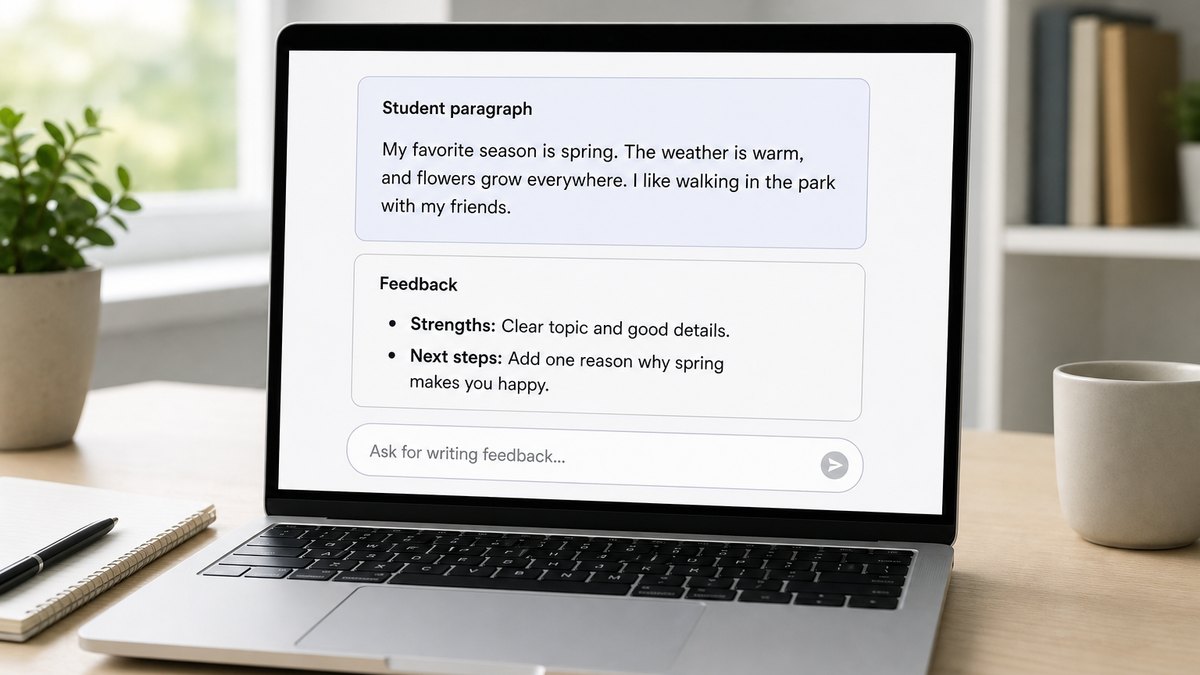
- Writing feedback: Claude scores a student sample against a WIDA, TELPAS, or ELPAC descriptor and suggests next steps (review its judgment yourself).
- Careful differentiation: it holds several proficiency levels in one prompt and keeps them distinct.
Best Practices for Using Claude Well
- Give it context every time: grade, WIDA/ELPAC/TELPAS level, the standard, and your objective.
- Ask for scaffolds and a speaking component, which it rarely adds unless told.
- Iterate: treat the first output as a draft and refine (“make it one level lower”, “add sentence frames”).
- Review for accuracy and bias, and never paste student names or data into a public tool.
How to Structure a Great Prompt
The builder above writes strong prompts for you. A good prompt grows in layers:
Basic (just the task): Make a writing prompt about my community for English Learners. Fast, but generic.
Advanced (adds grade, level, scaffold): Make a writing prompt about my community for Grade 5 at WIDA Level 2, with sentence frames and a word bank. Now beginners can start.
Expert (adds function, model, rubric): Create prompts at WIDA Levels 1, 2, and 4, each with a language function, a scaffold, a model paragraph, and a short rubric. This is what the builder produces.
Five techniques that upgrade any prompt: give the AI a role, name the output format, show an example (few-shot), ask for differentiation in one prompt, and iterate.
Claude’s Standout Strength: Long Documents
The capability that most sets Claude apart for teacher work is its ability to handle a large amount of text in a single conversation. For an ELL teacher, this opens workflows that are awkward in tools built around short exchanges. You can paste an entire chapter or a long informational article and ask Claude to produce three leveled versions at once, one for beginning, one for developing, and one for expanding proficiency, while keeping the key academic vocabulary consistent across all three. You can drop in a full unit and ask it to identify where the language demands are highest and suggest scaffolds at those points. You can even paste a set of your state’s English language development descriptors and ask Claude to check a student writing sample against them, so the feedback maps to the standard you actually use rather than a generic one.
The practical habit that makes this work is to give Claude the whole source rather than a summary, then ask for exactly the output you want. Because it can hold the full text in view, its differentiation tends to stay faithful to the original meaning instead of drifting, which is the common failure when a long passage is simplified piece by piece. As with any AI output, read the result before using it, particularly the leveling, since what counts as a given proficiency level depends on your students and your judgment.
Keeping Student Data Safe with Claude
Using Claude for teacher preparation is low risk, but the moment student information enters the conversation, data privacy becomes the priority. The simple rule is to keep identifiable student data out of any public AI tool: no names, no ID numbers, no IEP details, no assessment scores tied to a student. When you want feedback on a writing sample, remove the name first. This is not only good practice; it aligns with FERPA, and for students under 13 with COPPA, both of which govern how student information may be handled. It also fits the direction of district and state AI policy, which has expanded quickly, with most states now publishing K-12 AI guidance and a growing number of districts adopting acceptable-use policies that spell out exactly these expectations. Before leaning on Claude across your team, check whether your district has an approved AI tool or an enterprise agreement, since those often provide stronger data protections than a personal consumer account. Since August 2026, U.S. K-12 schools and districts can set up Claude for Teachers for free, with model training turned off and student information covered by Anthropic’s K-12 Data Processing Addendum. Following your district’s AI policy is the safest path, and it lets you use the tool’s real strengths without putting student privacy at risk.
Frequently Asked Questions
How do teachers use Claude?
To draft lesson plans, differentiate worksheets, write rubrics, simplify long texts, and give feedback on student writing. ELL teachers use it most for leveled materials and rubric-based scoring.
Is Claude better than ChatGPT for teachers?
Neither is strictly better. Claude is strong at long documents, careful writing, and feedback; ChatGPT and Gemini are excellent all-rounders, and Gemini integrates with Google Workspace. Try the same prompt in two and keep the better output.
Is Claude free for teachers?
Yes for verified U.S. K-12 educators: Claude for Teachers is free, with a full year of access for those who sign up by June 30, 2027. Any teacher can also use the Free plan, which includes the Sonnet and Haiku models with usage limits; paid plans add more usage and the Opus model.
Is it safe to use Claude in the classroom?
For teacher prep, yes, with a review for accuracy and bias. Students should not use it directly: Claude requires users to be 18 or older, and Claude for Teachers is for educators only. Never paste student names, IEP details, or scores into a public tool, and follow your district’s AI policy.
What is Claude best at for ELL teachers?
Working with long documents. You can paste a whole chapter or article and ask for several leveled versions at once, or check a writing sample against your state’s language descriptors. Because it holds the full text in view, its differentiation stays faithful to the original meaning.
Can I paste student writing into Claude?
In a personal account, only after removing anything identifiable, no names, ID numbers, IEP details, or scores tied to a student. In Claude for Teachers, identifiable student information may be used only if your school or district has authorized it. Keeping identifiable data out of public AI tools aligns with FERPA and COPPA and with your district’s AI policy. Check whether your district has an approved tool or enterprise agreement with stronger protections.
Does using Claude need to follow our district AI policy?
Yes. Most states now publish K-12 AI guidance and many districts have adopted acceptable-use policies covering permitted uses, data privacy, and transparency. Follow your district’s policy on which tools are approved and what data may be entered before using Claude with your team.
Can Claude create materials at several proficiency levels at once?
Yes, and it does this well because it can keep multiple levels distinct in one prompt. Ask for beginning, developing, and expanding versions together, with consistent academic vocabulary, then review the leveling against your own knowledge of your students.
Related Resources
- ChatGPT for Teachers
- Gemini for Teachers
- WIDA Writing Rubric: Score EL Writing with AI
- AI Prompts for ELL Teachers
Conclusion
Claude for teachers is a strong choice when the work is writing-heavy: leveled texts, rubric feedback, and careful differentiation for English Learners. Master the prompts, keep student data out, review every output, and pair your AI-made materials with the one thing they cannot deliver, individualized speaking practice for every student.
Sources: ACTFL; WIDA Consortium; U.S. Department of Education, Student Privacy; Anthropic, Claude for Teachers; Claude plans and pricing.
When the Writing Is Done, the Talking Begins
Claude is at its best on the written side of teaching: a leveled text, a rubric, feedback on a paragraph, all produced in the time it takes to frame the request. For an ELL teacher, that is a real reduction in the hours spent preparing and grading.
But the document Claude writes cannot answer back. An English Learner can read the best-differentiated passage in the class and still have almost no chance to speak, because a single teacher managing thirty students has only moments of conversation to give each one. What Claude cannot supply is not better writing; it is a partner for talk. The limit is capacity, not the model.
So teachers are starting to pair their AI-made materials with something that carries the speaking. Telo AI is one example, giving each student individualized conversational practice tied to the lesson, with a WIDA-aligned teacher dashboard, in English plus Spanish and French for bilingual programs.
See how AI-written lessons connect to real speaking practice: https://mytelo.ai/how-telo-works/
Claude can write the lesson and even score the essay; it cannot be the second voice in a conversation. The teachers who get the most from it let it own the writing, then send the reclaimed time toward the talk that actually builds language.
Found this guide useful?
Preferred sources show up more often in your Google results, including AI Overviews.